
Importer results and property data
Filter, inspect, analyze, and export a completed Cloud Importer result.
Open a result
Open an Importer job and find the run under Results. Open the row menu and select View result. Successful, failed, and in-progress runs are identified separately. A failed run can include an error message and may contain fewer retained properties than expected.
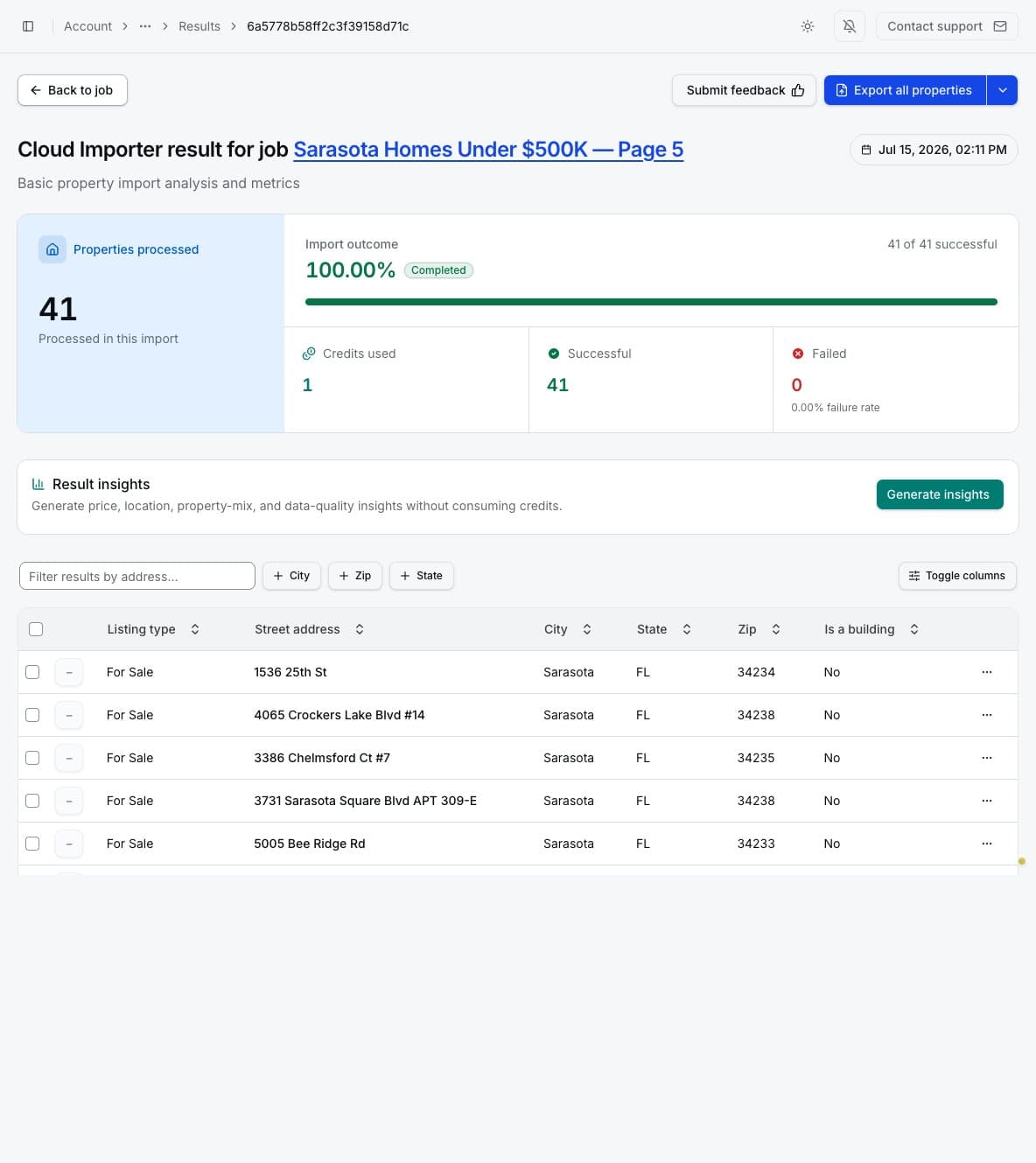
Read the result summary
The summary shows processing counts, a completion percentage, and credits used. Basic and Advanced results are labelled so you know which data depth was captured. Advanced counts describe primary listing retrievals. In Basic results, the failed-property figure is an estimate based on failed pages, not an exact count of individual listings that failed.
When insights are available, View insights opens statistics calculated from the retained records, such as price distribution, locations, property types, and data coverage. If the button says Generate insights, selecting it creates the analysis for that result.
Find and inspect properties
Search by address and use the City, ZIP, and State filters to narrow the table. Column controls change what is visible on screen; they do not remove fields from the stored property data.
Open the street address or use View property data in the row menu. The property page groups available fields into Location, Market and pricing, Property details, Contacts, Media, and Listing information. Missing values mean the field was absent from the retained source data.
Export a result
Use Export all properties for the whole result. For a partial export, select rows, open More
export options, and choose Export selected properties. In the export form, choose CSV (.csv),
Excel (.xlsx), Parquet (.parquet), or JSON (.json), then review the fields and any compatible
template before exporting.
The job's automatic delivery method does not limit these controls. A result delivered to Google Sheets or sent by Email remains available here for manual export. Email delivery always uses CSV, but the result page can still provide the other supported formats.
Deleting an individual property or result is permanent. Export anything you need before confirming deletion.
When a run fails or returns no properties
Read the run's Error message, then open the saved search with View on Zillow. Check the location, filters, listing type, and starting page. A zero-property result alone does not establish whether the search was empty or the source could not be read.
Edit the job if its search is wrong. If the search is correct and Zillow currently shows matching listings, try another run or contact support with the job and result details. Each new run can use credits for successfully processed work. Archive a recurring job if you want to stop automatic runs while you investigate; previous results remain available.