
Cloud Monitoring
Track a list of properties and compare their listing status over repeated runs.
What Monitoring does
Cloud Monitoring takes a controlled list of properties and captures a new status snapshot each time the job runs. It is useful when you need to see whether tracked properties became listed, sold, changed price, disappeared, or otherwise changed between runs.
Unlike Importer, Monitoring does not start from a search URL. You upload the exact properties to track.
Create a Monitoring job
Open Cloud → Monitoring → Create new job. The creation flow has three steps.
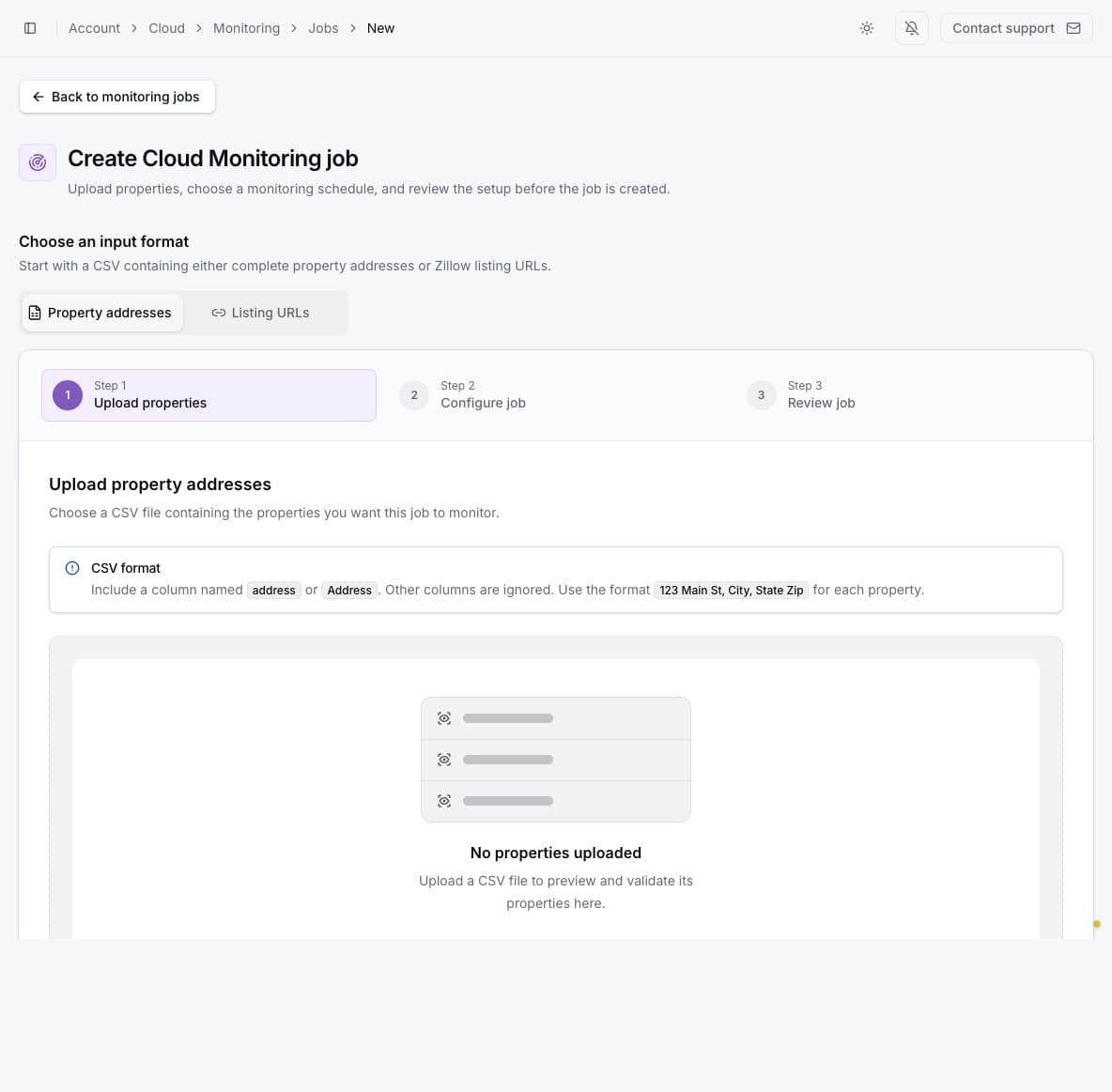
1. Upload properties
Choose one input format and upload a CSV file:
- Property addresses: include a column named
addressorAddress. Use complete addresses such as123 Main St, City, State Zip. - Listing URLs: include a column named
urlorURL. Every included value must be a valid Zillow property URL.
Other columns are ignored. The preview identifies valid and invalid rows. Remove or correct invalid rows before continuing; only valid rows are added to the job.
The CSV is the job's input format only. Completed Monitoring results can be downloaded as CSV
(.csv), Excel (.xlsx), Parquet (.parquet), or JSON (.json).
2. Configure the job
Enter a clear name and select Manual, hourly, daily, weekly, monthly, or yearly frequency. Optionally enable Google Sheets delivery. If you use an existing linked spreadsheet, choose the available destination; a sheet already assigned to an incompatible job may be unavailable.
3. Review and create
Confirm the property count, schedule, and destination. The review also displays your current Cloud credit balance. Select Create job only after the uploaded property count is correct.
Failed property retrievals do not use credits
A monitored property uses one credit only when PropertyDataLabs successfully retrieves its data for that run. If the property cannot be retrieved, it uses zero credits. A successfully retrieved property can still contain empty fields when Zillow does not provide those values.
Manage watched properties
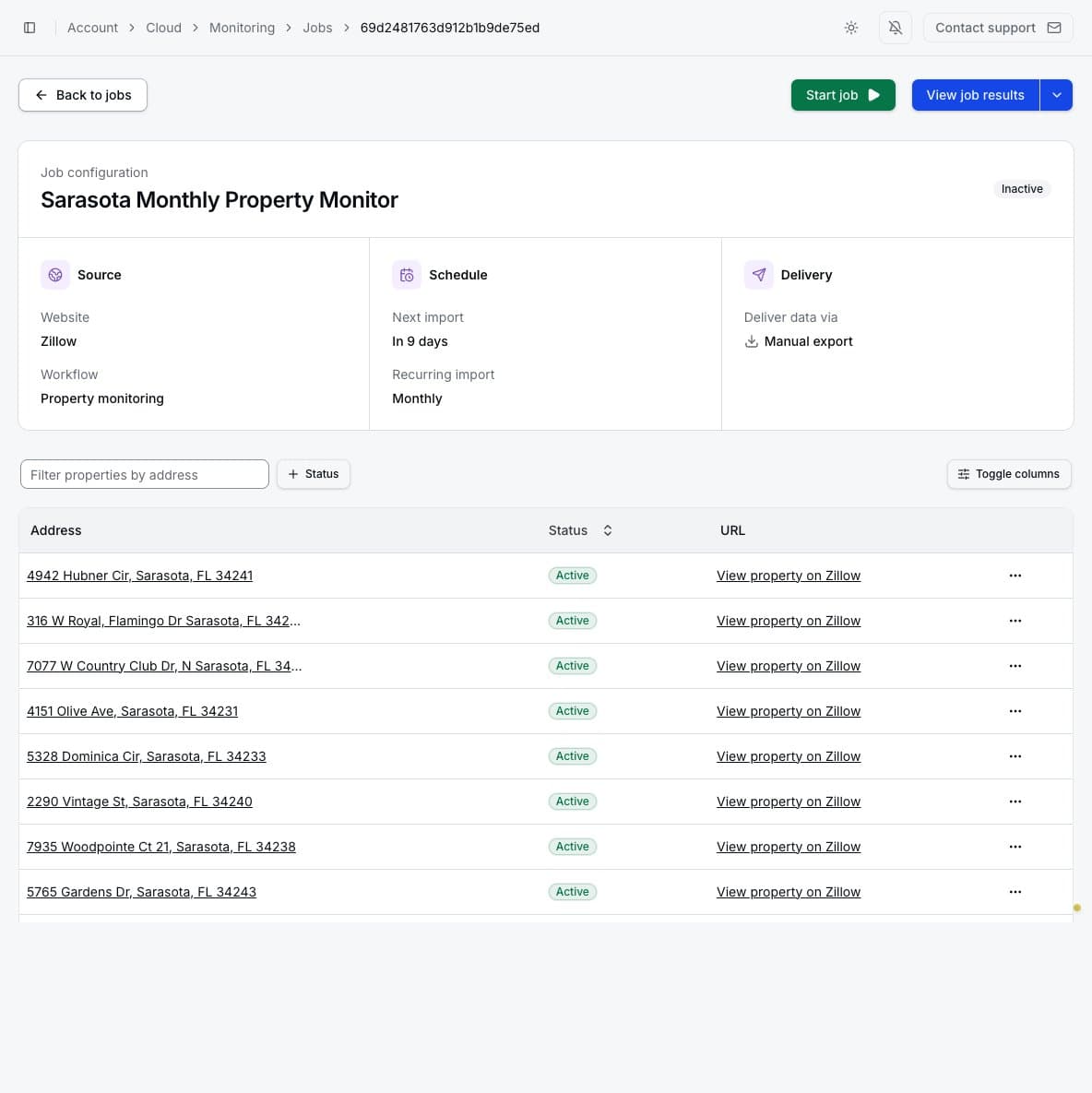
The job page shows Active and Archived properties. Search by address, filter by status, and open a property to see its monitoring history. A property menu can include View monitored property, Edit property, Archive property, and Delete property.
Archiving stops treating the property as active while preserving its retained history. Editing is appropriate for correcting its address or Zillow URL. Deleting is permanent.
Review a monitoring run
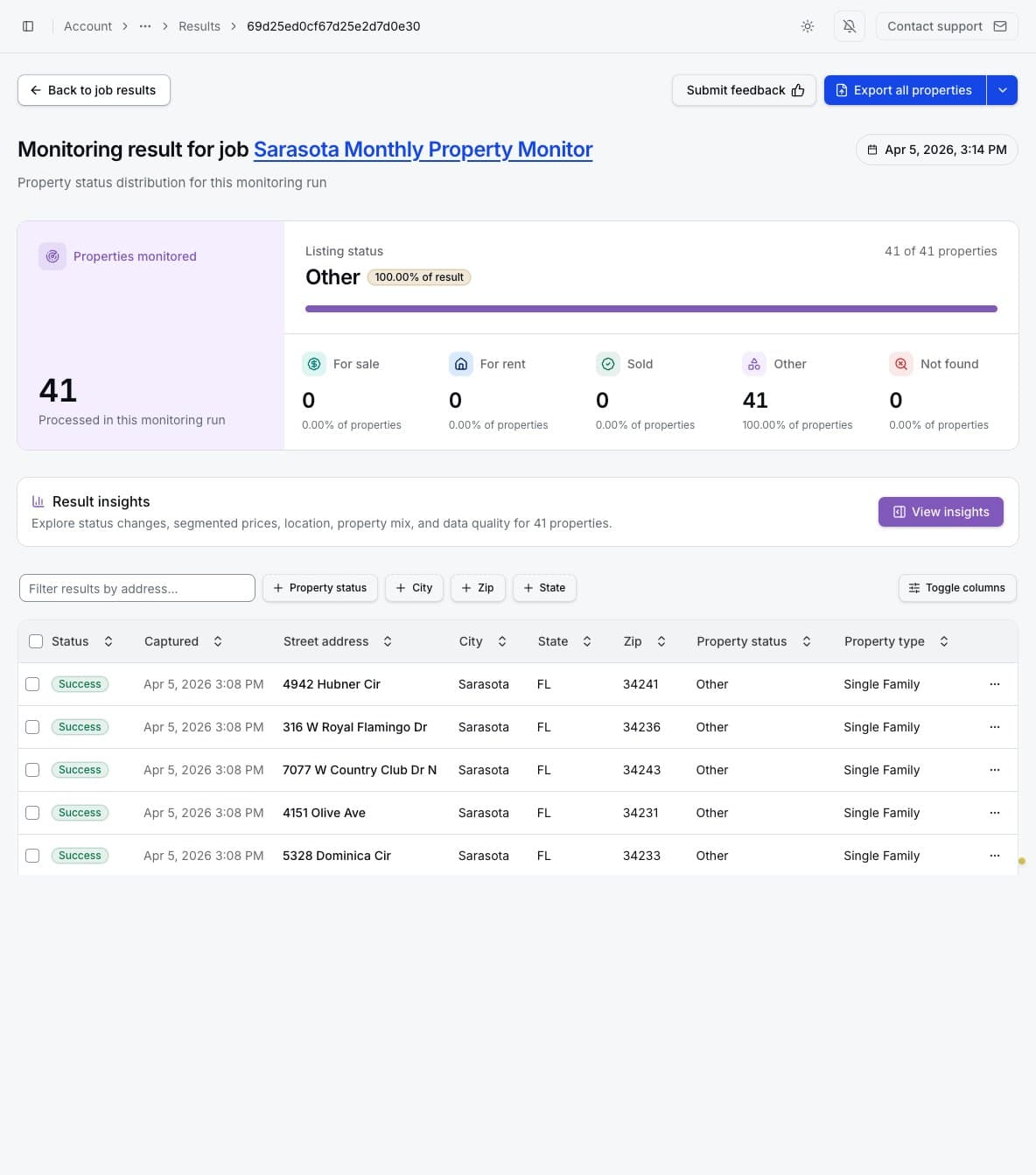
Select View job results and open a completed run. The result summary groups properties into For sale, For rent, Sold, Other, and Not found. Search and location filters help narrow large result sets.
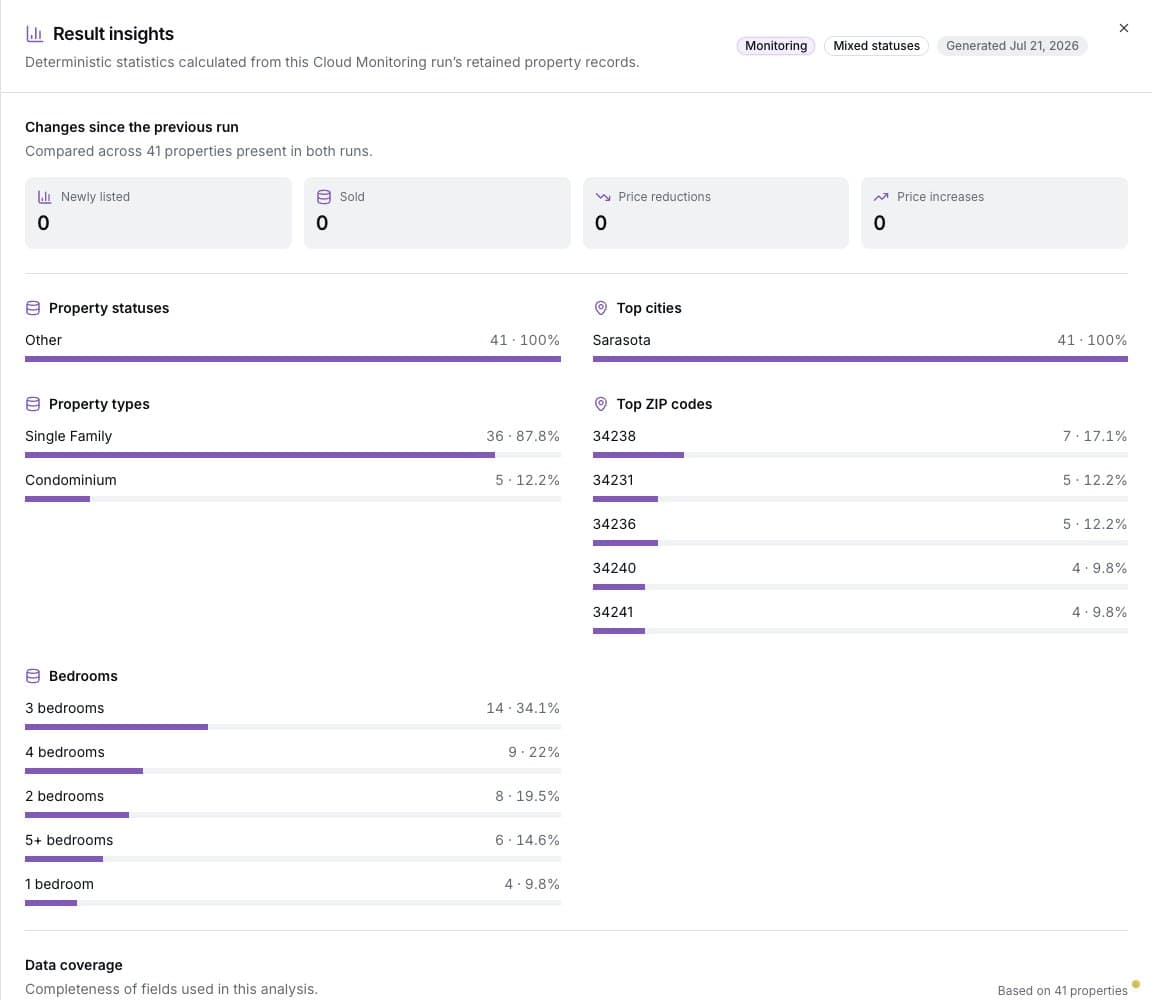
When generated insights are available, they compare properties present in consecutive runs and show status changes, price changes, locations, property types, bedrooms, and field coverage.
Open a property result for its captured price, status, location, physical details, media, and source URL. The monitored-property page shows the same property's history across multiple runs, which is different from viewing all properties in one run.
Edit, export, and schedule
The job's Edit job page changes its name, run frequency, and future Google Sheets delivery. It does not alter existing results. Start job creates a new snapshot and consumes credits for the properties processed.
Use result export controls for selected or all properties and choose CSV, Excel, Parquet, or JSON. Large files appear under Background exports and remain downloadable for 24 hours after creation.