
Add organization members
Invite members, track responses, resend or revoke invitations, and remove access safely.
Who can invite members
Organization owners and admins can send invitations. An organization on the legacy Team plan supports up to 10 members in total, including the owner. The invitation window shows how many additional people can be invited.
Send an invitation
- Open Organization → Invitations sent.
- Select Invite teammates.
- Enter the person's email address.
- Choose Member or Admin. Read Roles and permissions before granting admin access.
- Select Add email to prepare more invitations in the same form, if needed.
- Select Send invite or Send invites.
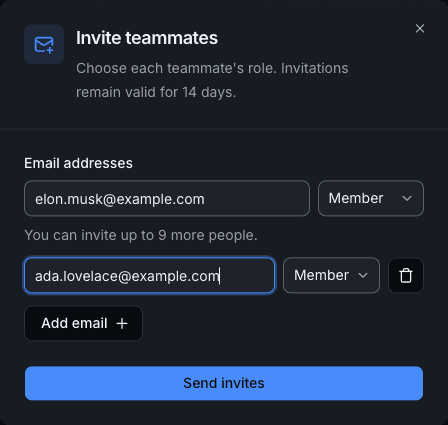
The invitation remains valid for 14 days. The secure sign-in link in the invitation email remains valid for 24 hours. If that link expires, the invited person can sign in directly or ask an owner or admin to resend it. The invited address must belong to the account that will accept the invitation. An account that already belongs to an organization cannot join a second one.
Track, resend, or revoke an invitation
The Invitations sent table shows the email address, assigned role, sent date, sent count, and response status. Search by email or filter by role and status.
Open the row menu for an invitation that has not been accepted:
- Resend invitation sends a fresh email with a new 24-hour sign-in link and starts a new 14-day invitation window. An invitation can be resent up to two times.
- Revoke invitation invalidates a pending invitation so it can no longer be accepted.
Accepted invitations have no resend or revoke action.
Accept or decline an invitation
The invited user follows the email link or signs in with the invited email address and opens Organization → Invitations received. Open the row menu and choose Accept invitation or Decline invitation. An expired invitation cannot be accepted or declined. Ask an owner or admin to resend it.
After acceptance, the user appears on Organization → Members and inherits eligible features from the organization owner's subscription. If the New member credits rule is enabled, the configured credit amount is transferred from the owner when the user joins.
Remove a member
Owners can remove admins or members. Admins can remove members, but cannot remove the owner or another admin.
- Open Organization → Members.
- Open the action menu on the member's row.
- Select Remove from organization.
- Read the confirmation carefully, then confirm the removal.
Removal ends the member's inherited organization access, returns their remaining organization credits to the owner, removes their organization role and team memberships, and returns their account to the Free plan. It does not delete their PropertyDataLabs account.
The owner cannot be removed
The owner cannot leave or be removed like another member. The owner must delete the organization to end it, which is a separate permanent action.