
Password, 2FA, and extension access
Protect the account and generate a short-lived browser-extension sign-in code.
Account security
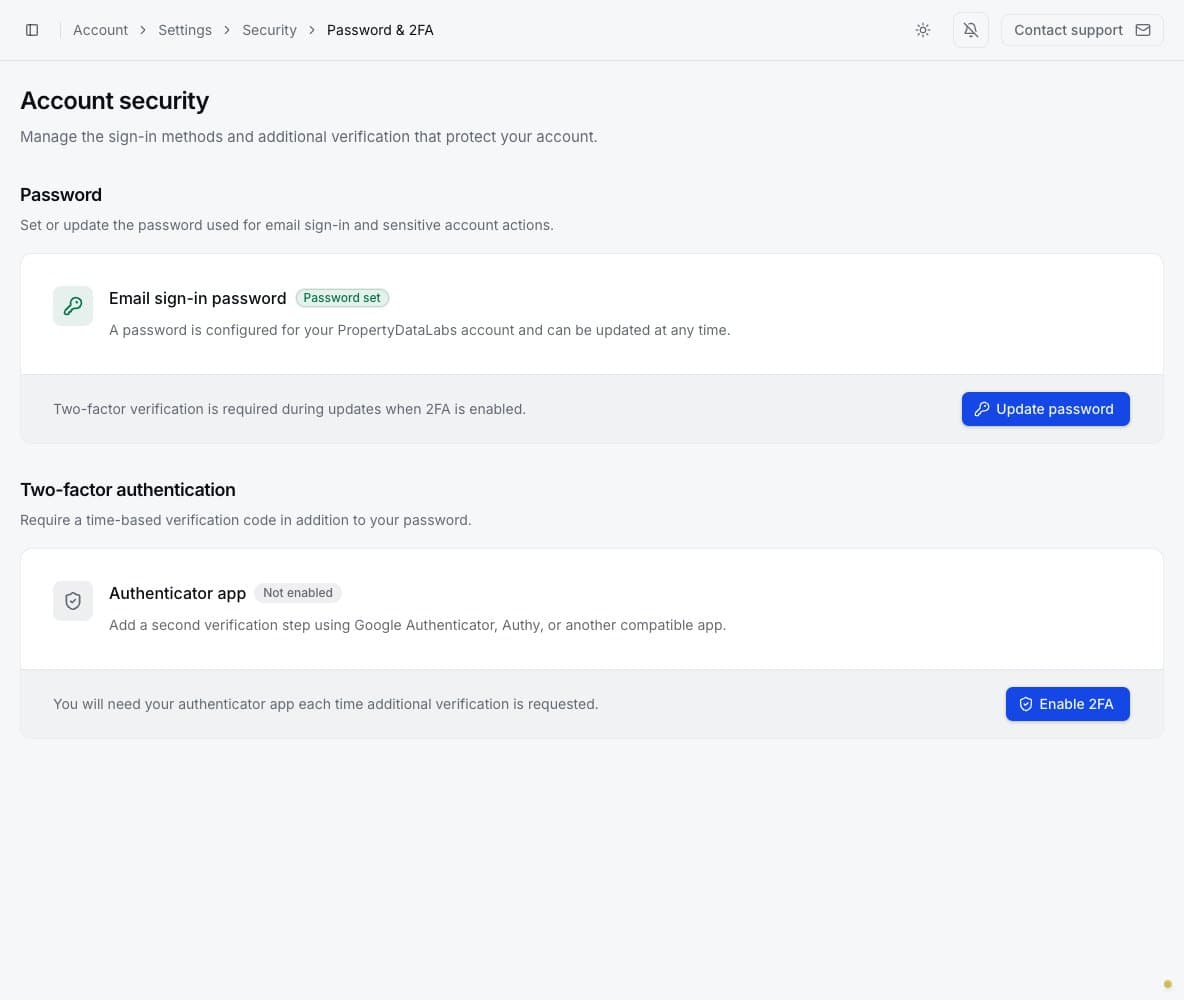
Open Settings → Password & 2FA to manage email sign-in security.
Update the password
Select Update password and complete the verification form. Use a unique password that is not reused on another service. If two-factor authentication is enabled, its verification code is also required during sensitive changes.
Changing the password protects future email sign-ins. Follow any on-screen session guidance if you believe an existing session is unauthorized.
Enable two-factor authentication
Select Enable 2FA and scan the displayed setup information with Google Authenticator, Authy, or another compatible time-based authenticator app. Enter the current code to confirm setup.
After activation, keep access to the authenticator app. A valid password alone may not be enough for future verification. Never share an authenticator code with support or another user.
Sign the browser extension in
Open Settings → Extension access and select Generate code. A one-time code is emailed to the account address.
- The code grants access to the browser extension without exposing the account password.
- It can be used once.
- It remains valid for 10 minutes.
- Request it only when you are ready to complete extension sign-in.
If a code expires or was already used, generate a new one. Do not forward the email or share the code.
Treat temporary codes like passwords
Anyone who can use an active code may be able to connect the extension to your account during its short validity window.