
Linked accounts and Google Sheets
Connect Google Sheets and manage spreadsheet destinations for jobs and exports.
Connect a service
Open Settings → Linked accounts. The Services section shows each provider and its current status.
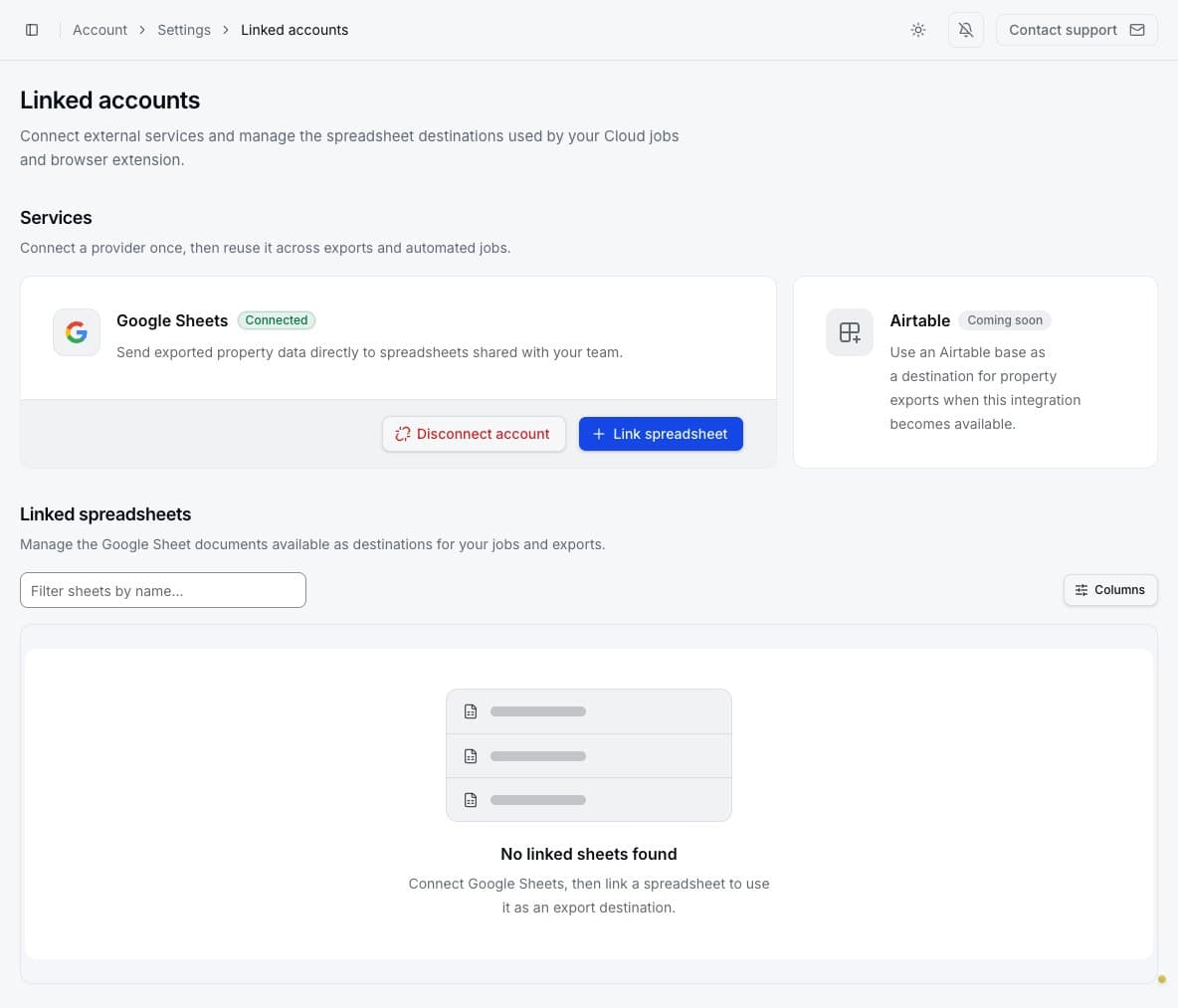
Google Sheets is the available spreadsheet integration.
To connect Google Sheets, select the connect action and complete Google's authorization flow. Review the Google account shown by Google before granting access. Returning to PropertyDataLabs should show the provider as Connected.
Link a spreadsheet
Connecting Google authorizes the service. Linking a spreadsheet makes a particular Google Sheets document available as a destination.
- Select Link spreadsheet.
- Enter a recognizable document name.
- Paste the full Google Sheets share link.
- Select Open link to verify if you want to confirm that the link opens the intended sheet.
- Select Link spreadsheet, then confirm that it appears in the linked-spreadsheets table.
Search linked sheets by name and use Columns to control the table display. Some sheets can be unavailable when already assigned to an incompatible job.
Use the row menu to Edit spreadsheet or Delete spreadsheet. Deleting a linked destination removes it from PropertyDataLabs; it does not delete the document from Google Drive. Read the confirmation if the spreadsheet is assigned to a job, because removing it can stop future uploads.
A Google Sheets account can be connected to only one PropertyDataLabs account at a time. If the connection says it is already linked to another user, use that PropertyDataLabs account or connect a different Google account.
Use Google Sheets with Cloud Importer
While creating or editing an Importer job, find Automatic delivery and select Google Sheets. Google Sheets is one of three delivery choices:
- None — export manually keeps the result in PropertyDataLabs without automatic delivery.
- Google Sheets uploads each completed result to Google Sheets.
- Email sends each completed result as a CSV (
.csv) file to the verified account email.
Only one choice can be active. Selecting Google Sheets turns off Email delivery, and selecting Email or manual export turns off future Google Sheets uploads for that job.
After selecting Google Sheets, choose how each run creates its destination:
- Create a new spreadsheet creates a separate Google Sheets file for every completed run.
- Add a tab to a linked spreadsheet keeps runs in one Google Sheets file. Each run creates a new tab named from the job ID and run time; it does not overwrite an earlier tab.
The second option requires a spreadsheet linked through the steps above. Select the intended linked spreadsheet before reviewing and saving the job.
Choose the columns sent to Google Sheets
Open the Cloud Importer job and select Update Google Sheets fields. Choose the fields, export options, and column order used by future Google Sheets uploads.
Changing these settings does not rewrite existing spreadsheets or remove data from retained Cloud results. The job's Google Sheets actions also let you link or change the destination document, unlink it, or stop future Google Sheets exports when the job is not running.
Results remain available in PropertyDataLabs
Google Sheets delivery is an additional destination, not the only copy of the result. Every
completed Importer result remains available from its secure result page for inspection and manual
export as CSV, Excel (.xlsx), Parquet (.parquet), or JSON (.json).
Use the retained result if the spreadsheet is deleted, permissions change, the Google account is disconnected, or you otherwise lose access to Google Sheets.
Disconnect safely
Disconnect account removes the PropertyDataLabs connection. It does not delete spreadsheets from Google Drive, but future jobs can no longer upload through that connection. Before disconnecting, edit scheduled Importer jobs and change Automatic delivery to None — export manually or Email so their future delivery choice remains valid.