
Export templates
Create reusable file formats, column selections, and column order for exports.
What a template controls
An export template is a reusable output recipe. It can define the listing type, product where it is used, Basic or Advanced depth, file format, empty-column behavior, image handling, selected fields, and final column order.
Templates do not store properties and do not run exports. They are applied when a compatible export is created.
Browse templates
Open Export templates and choose For sale, For rent, or Sold. Search by name and filter by domain, export type, or format. The Domain column identifies whether the template is intended for the browser extension or a Cloud product.
The row menu provides Edit template and Delete template. Editing affects future use. Deleting does not change files already exported.
Create a template
Select New template.
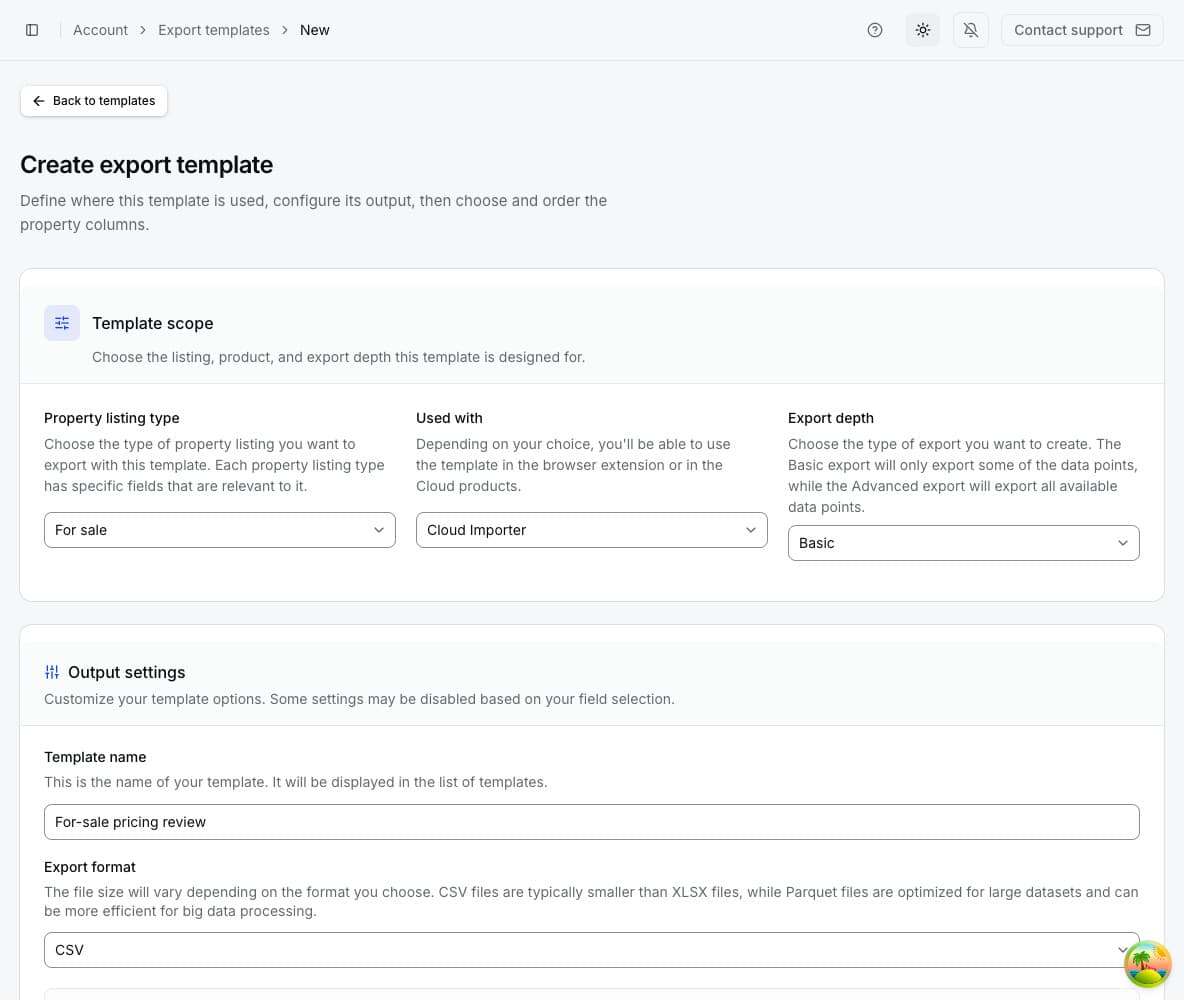
1. Choose the scope
- Property listing type: For sale, For rent, or Sold.
- Used with: the extension or supported Cloud product.
- Export depth: Basic or Advanced.
These choices determine which fields and options can be selected. A template only appears where its scope is compatible.
2. Configure output
Enter a template name of at least five characters. Select CSV, XLSX, Parquet, or another format made available by the current plan and scope.
- Remove empty columns removes columns with no values from a generated file.
- Export all image URLs can create many additional columns and larger files; it becomes available only when the necessary media field and entitlement are present.
- Share with your organization exposes the template to every eligible organization member.
- Share with your team exposes the template only to eligible members of your internal organization team.
Individual accounts can leave both sharing options off.
3. Choose and order columns
Search available fields or expand Basic Info, Location, Financials, Details, Ownership, and Media. Select a field to add it to Selected columns. Search the selected list, drag fields into the final order, or use Sort where available.
The count beside each group shows selected fields compared with all fields in that group. Select all is convenient, but a smaller purpose-built template is usually easier to analyze.
4. Save
Review the scope before selecting Create template. If the button is disabled, check the name, required fields, and whether at least one column is selected.
Edit a template
Open the template name or select Edit template. Change the output options, selected fields, or order and save. Existing exported files remain unchanged. If the listing type, domain, or depth cannot be changed, create a new template for the new scope.
Missing fields in an export
A selected column is included when the source record provides it. Selecting a field does not cause Zillow to provide a missing value. Use Remove empty columns only when you are comfortable with the file's columns varying between exports.