
Can you install a Chrome extension on Microsoft Edge?
Yes. Desktop Microsoft Edge can install extensions from the Chrome Web Store, including Zillow Data Exporter. Once you install it, the export controls appear on supported Zillow pages.
How to install Zillow Data Exporter on Microsoft Edge
- In Microsoft Edge, open Zillow Data Exporter in the Chrome Web Store.
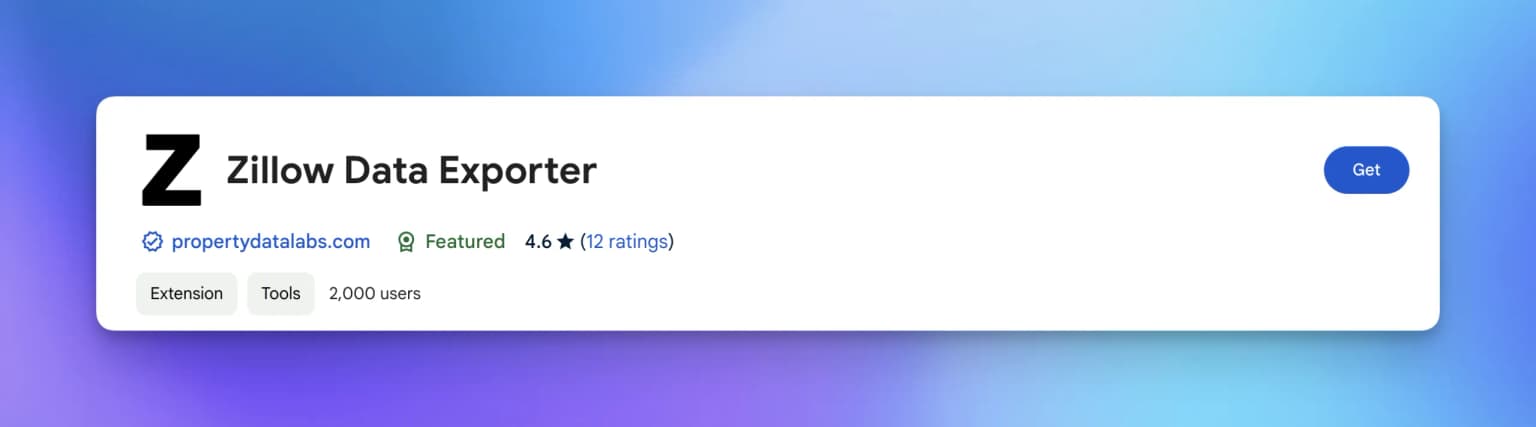
- Select Get extension in the banner or Get on the product page.
- If Edge asks whether to Allow extensions from other stores, select Allow to continue.
- Review the permissions and select Add extension. Wait for Edge to confirm the installation.
Microsoft illustrates the browser controls in its guide to installing extensions in Edge.
How to use Zillow Data Exporter on Microsoft Edge
- Open Zillow and search for homes. If you had the results page open during installation, reload it.
- Find the dock at the lower left of the Zillow page. Select Log in, then Continue via website. Sign in to your PropertyDataLabs account or create a free account.
- Return to Zillow. When the dock shows Settings, your account is connected. Set the filters for the listings you want and wait for the results to load.
- Select Export page and keep the tab open while the extension prepares your file. On Free, open the downloaded CSV in Excel or another spreadsheet app.
For a worked example, follow the first search-page export guide.
Caveats
If the dock is missing, open Extensions → Manage extensions in Edge and check that Zillow Data Exporter is enabled. Return to a Zillow results page and reload it. The extension troubleshooting guide covers sign-in and download issues. If the problem persists, include your Edge version and the affected Zillow URL when you contact support.